Tab grouping & recovery
Group observed tabs by purpose, preserve pinned tabs and restore supported previous layouts when newer manual edits do not conflict.
Organize your real tabs, carry useful information across apps, and return to a saved setup.
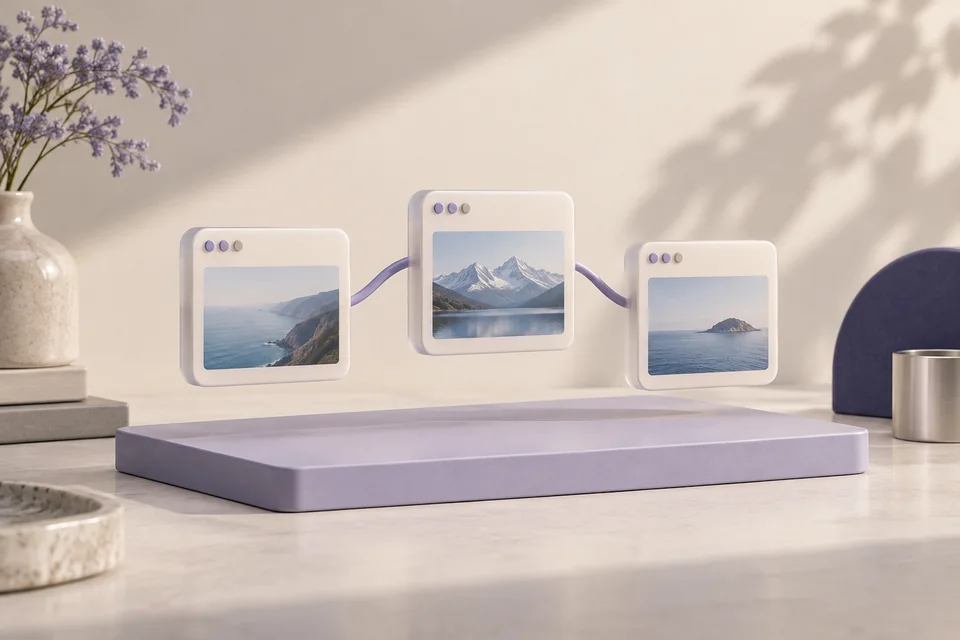
Group my Chrome tabs into frontend work and research; leave the pinned ones alone.
Research has a way of spreading across tabs, editor windows and half-finished tasks. Jarvis's desktop browser connection works with a connected Chrome or Edge profile, while workspace snapshots keep supported browser, editor and window references together.
See it in your dayGroup observed tabs by purpose, preserve pinned tabs and restore supported previous layouts when newer manual edits do not conflict.
Read supported selected text or HTML tables and transfer them into a file, clipboard or connected editor.
Save and restore supported browser/editor references and native window positions under a name you choose.
The task agent also has a separately configured browser tool for navigation and page actions. That runtime is distinct from the real-profile desktop adapter.
Follow the thought from the first sentence to the result. Make the names, files, and timing your own.
You have a busy browser window with documentation, references and working application tabs.
“Group my Chrome tabs into frontend work and research; leave the pinned ones alone.”
The connected extension returns the current window's tab IDs, titles, URLs and grouping snapshot.
Jarvis proposes and applies a validated grouping based on that observed information and your requested categories.
The previous layout is recorded. Ask to undo the grouping if it is not useful; recovery checks for conflicting newer organization.
Groups in the connected browser window. Titles and URLs may not be enough to infer every topic, so you can refine the grouping.
You found a useful HTML table and want to work with its values outside the page.
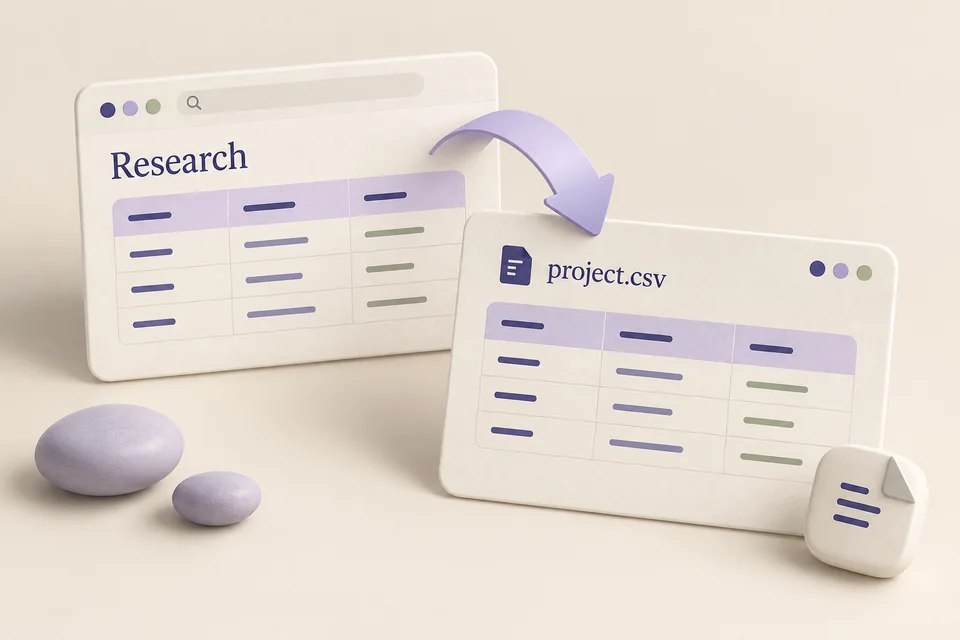
“Save this table as a CSV file.”
The browser adapter captures a supported table from the actual page you identify.
The workflow checks its structure and converts the values into a CSV output.
Jarvis returns a file reference. Open it and inspect headings and rows before using it in your next step.
A real CSV file from the supported table. Merged cells are reported rather than silently shifting the columns.
You are leaving a project that has its own editor window, references and desktop layout.
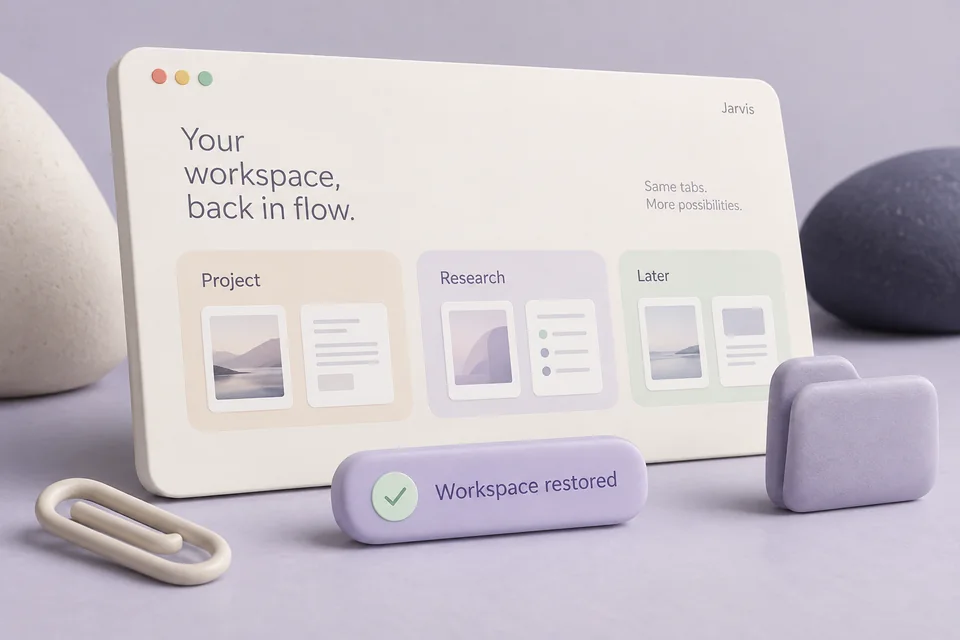
“Save this setup as Frontend. Later, bring back Frontend.”
Saving records supported browser/editor references and selected native window positions under your chosen name.
Restoring resolves that saved workspace and attempts to reopen or reposition the available components.
Read the result for restored, skipped or unavailable components. Multiple matching workspace names return choices.
A recovered working arrangement for supported applications. Unsaved document contents and application memory are not captured.
Load the returned directory as an unpacked extension in Chrome or Edge. It connects to that profile and excludes private windows.
uv run jarvis desktop setup-browserInstall the editor adapter and reload VS Code when required.
uv run jarvis desktop setup-editor --installUse desktop status to confirm that the expected browser and editor are connected.
uv run jarvis desktop statusThe desktop extension is a development distribution loaded manually, not a published browser-store extension. It does not fall back to a different browser profile.
Undo may refuse a conflicting restoration if you have reorganized the tabs manually. Saved layouts are references, not full application backups.
Workflow images are generated illustrations, not screenshots of a connected assistant. Availability depends on your configured tools and providers.