Windows & window layout
Inspect supported windows and apply available layout operations using actual window identities.
Use supported Windows controls, inspect visible context and work with connected applications.
Show my available audio outputs and switch the default to my headphones.
A useful desktop assistant needs to know what is available before it acts. Jarvis exposes supported Windows controls alongside application adapters, screen capture and local text recognition, with capability checks for the machine it is actually running on.
See it in your dayInspect supported windows and apply available layout operations using actual window identities.
Capture a screenshot or recognize visible text locally in an identified foreground window. Model-based image interpretation needs vision support.
Inspect and adjust supported volume and brightness controls, list active audio outputs and verify a chosen default output device.
Inspect VS Code context, open a known file, insert text into a verified selection and run supported commands or known tasks.
Use deterministic arithmetic, percentages, bill splitting and supported unit conversions. Sort lines, remove duplicates or transform supplied text without asking a model to guess the calculation.
Follow the thought from the first sentence to the result. Make the names, files, and timing your own.
You plugged in a device but Windows is still sending sound to the wrong output.
“Show my available audio outputs and switch the default to my headphones.”
Jarvis lists active output devices and their actual IDs instead of guessing a device name.
It selects the identified device for the requested Windows default roles and checks the resulting setting.
If an already-open application still plays elsewhere, restart its playback stream or change that application's own output setting.
A verified Windows default output change where supported. Existing playback streams may keep their previous output.
A dialog shows useful text, but you cannot select it normally.
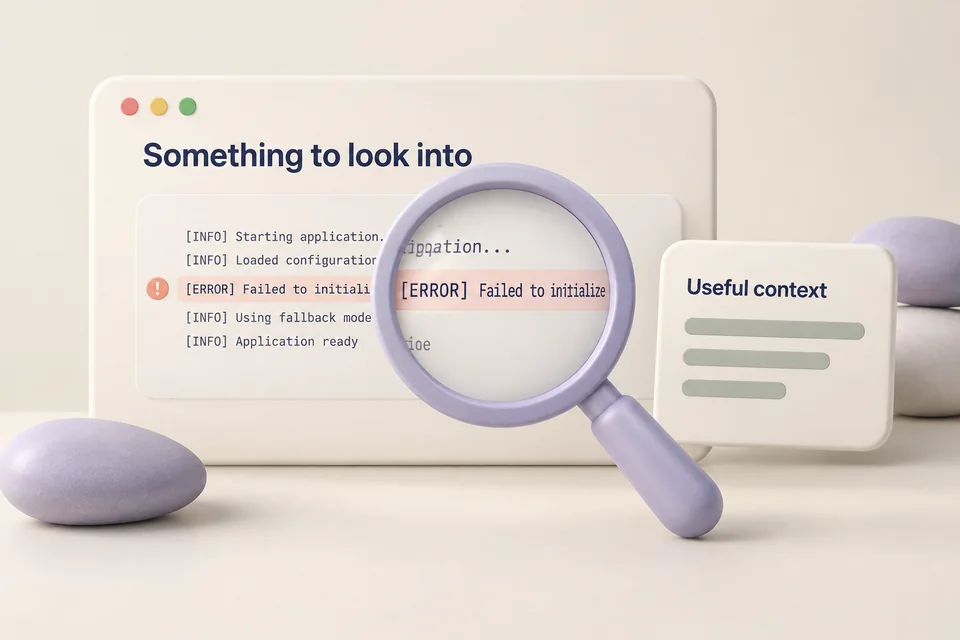
“Read the visible error text in this window.”
Jarvis identifies the foreground window and checks that the requested target is still the active one.
The desktop tool captures that window and runs local text recognition with the available language support.
Review exact error codes against the screen before using them in a search or code change.
Recognized visible text with the limits of OCR. It does not reveal hidden content or guarantee every character is correct.
You are collecting useful excerpts without switching back and forth to copy and paste.

“Append this selected browser text to my connected editor file.”
The connected source returns the current selection and its identity.
The destination editor connection and selection are checked so text is not inserted into a stale or different target.
Append preserves existing text; replacement must be explicit. Inspect the editor result after insertion.
Text inserted into the verified supported destination. A disconnected editor or changed selection produces an actionable failure.
The desktop status command reports what this machine and its integrations support.
uv run jarvis desktop statusBrowser and editor adapters add structured selection and command support. Arbitrary application internals are not available just because their windows are visible.
Local OCR needs the Windows recognition language; interpreting a screenshot with the task model requires image support from that provider.
Brightness, audio controls and window operations depend on the hardware, Windows environment and installed dependencies. Check status rather than assuming universal support.
The high-level computer tools can click, type and press keys where available. Those actions still need the correct target and configured permissions; they do not provide deep integration with every app.
Workflow images are generated illustrations, not screenshots of a connected assistant. Availability depends on your configured tools and providers.

Watch a download or build, inspect long-running work, and undo supported actions.

Choose the task model, connect MCP tools and teach reusable ways of working.

Live conversation for the moment. A task agent for the work that follows.